Media Management Manual Forms Overview
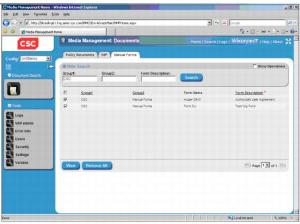
The Manual Forms search page displays forms available for use in constructing new Document Production documents.
The following steps explain how to use this page. Also see the figures at the end of this section.
1 After logging in, you should see a page with tabs along the top. If manual forms is enabled then you should see a "Manual Forms" tab. Click this tab to display the Manual Forms page.
A sample "XmlDemo" configuration is provided, which has access to manual forms.
|
d
|
In some cases, you will be able to click each row to expand it and view additional details. This is often disabled for manual forms.
|
|
e
|
You can use the paging controls at the bottom right to page through the results.
|
|
f
|
To sort the search results, you can click the column headings above the result table.
|
|
a
|
Check the left check boxes for the forms that you want to include in the document. If the "Select All" button is available, then you can click it to check all forms. After clicking this button, it changes to a "Remove All" button, which will uncheck all forms.
|
The new document will contain information from a provided Document Production extract file. The XmlDemo configuration uses a default extract file. In most manual forms implementations, the extract file will be provided by an external application like Agency Link when the user enters Media Management.
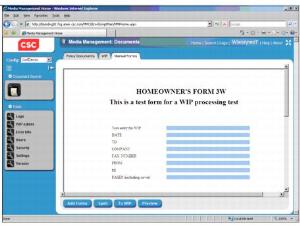
4 If the new document requires manual data entry then the document will open in edit mode. Otherwise, the document will open in preview mode (see step 5). On the Manual Forms edit page, the user can modify document fields. The following operations are available:
|
a
|
The "Add Forms" button closes the Manual Forms edit page and sends the user back to the Manual Forms search page.
|
|
b
|
The "Spell" button launches a spelling check dialog to check the spelling of field values entered by the user.
|
|
c
|
The "To WIP" button adds the new document to the Document Production WIP system. After this is done, the manual forms pages are disabled since the form has been sent to WIP. To view and edit the document, go to the WIP search page, search for the document, and then open it.
|
|
d
|
The "Preview" button opens the manual forms document in preview mode as a PDF document (see step 5).
|
|
a
|
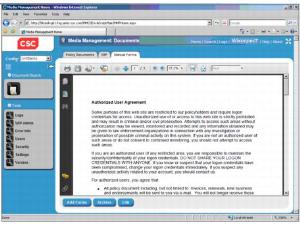
The "Add Forms" button closes the manual forms preview page and sends the user back to the Manual Forms search page.
|
|
b
|
The "Archive" button adds the new document to the Document Production archive. After this is done, the manual forms pages are disabled since the form has been archived. To view the document, go to the policy documents search page, search for the document, and then open it.
|
|
c
|
The "Edit" button opens the manual forms document in edit mode. This button is only available if the new document requires manual data entry.
|