Pop-up Blocker and Media Management
Many advertisers on the Internet use pop-up windows to display their messages in a way that is intrusive and hard to miss. Microsoft’s Internet Explorer (IE) 6.0 browser—when Service Pack 2 (SP2) is installed—in combination with the XP operating system (also with SP2) allows users to prevent most pop-up windows from appearing over pages you want to view while you are using the Internet. However, the Pop-up Blocker utility within IE 6.0 SP2 often has unintended consequences because many legitimate Web pages—including Media Management—will not operate properly if all pop-up windows are disabled.
The Media Management application has a requirement, by design, to utilize pop-up windows during the course of the user’s current browser session. Several customers have encountered "Pop-up blocked" errors when using IE 6.0 SP2 and XP SP2 with Media Management. In most cases, this is attributable to the restrictive settings defaulted in the Pop-up Blocker utility that is automatically added to IE 6.0 when SP2 is installed.
The Media Management application (at current General Availability C.0) was tested on Internet Explorer 6.0 SP1 and is only warranted for that version and update level of the browser. Many customers are attempting to implement with a more recent version of the browser (IE 6.0 SP2) because that was the default version available on newly purchased machines.
To eliminate these errors so Media Management will work properly, the Pop-up Blocker settings in the browser must be modified. This chapter contains instructions for those modifications to IE 6.0 SP2 and XP SP2 that will allow the Media Management pop-up windows. It is applicable to browser users who are implementing or accessing Media Management from the Internet or from within an intranet environment or via virtual private network (VPN). Specifically, this chapter will:
|
•
|
Describe the specific browser changes that will allow Media Management (C.0) to operate correctly with the IE 6.0 SP2 browser and the XP SP2 operating system while still retaining some protection from unwanted pop-up windows
|
|
•
|
Present basic information about pop-up windows and how to use the Pop-up Blocker within IE 6.0 SP2
|
This document only describes the Pop-up Blocker that comes as part of IE 6.0 SP2 with XP SP2. There are many common standalone “pop-up killer” programs that may be installed on your computer and would need to be turned off, uninstalled, or configured in order for Media Management to work properly. Consult the product documentation for specific instructions on configuring such applications.
A partial list of such programs includes: AdsGone, AdShield, AdSubtract, AOL/MSN Pop-Up Ad Blocker, Atomstorm, ExitKiller, HistoryKill, IE Cleaner, PopNot, Pop-Up Ad Filter, Pop-Up Agent, Pop-Up Defender, Pop-Up Eliminator, Pop-Up Inspector, Pop-Up Killer, Pop-Up Purger, Pop-Up Smasher, Pop-Up Stopper, Pop-Up Zapper, PopUpCop, StopPops, Stop-Sign, Stopzilla, Xeno Bar, Zero Pop-Up Killer, Zone Alarm.
Portions of the text in this document come from the Microsoft Help file accessible through Internet Explorer (IE) 6.0 SP2 browser’s Help menu. The Microsoft text has been modified to be more specific to Media Management.
If your personal computer uses the Microsoft XP operating system with Service Pack 2 installed and you use Microsoft Internet Explorer 6.0 SP2 as your Web browser, you may be encountering difficulties when trying to use your Media Management application.
For example, if you see a message above your Media Management Document Search page when you click on a document, like the one shown below, this document will show you how to change your browser settings to prevent this interference.
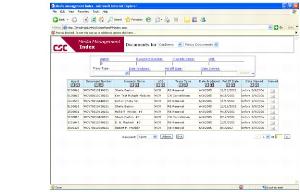
“Pop-up blocked” message indicates browser settings may be interfering with Media Management.
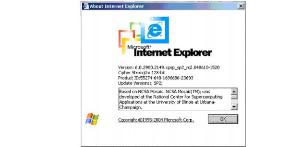
4 In the About Internet Explorer window, the Version and Update Versions details will confirm whether you need the instructions in this document.
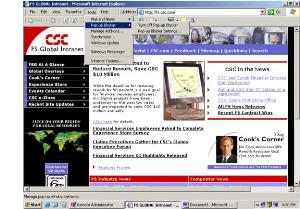
Pop-up Blocker is turned on by default. You have the option of turning it off completely or configuring the settings to allow pop-ups from specific Web sites that you use frequently and trust—the Media Management site, for instance.
Configuring Pop-up Blocker Settings To Allow Helpful
Pop-Ups Used in Media Management
Pop-Ups Used in Media Management
Follow these steps to allow the pop-up windows that Media Management needs to help you process your business smoothly.
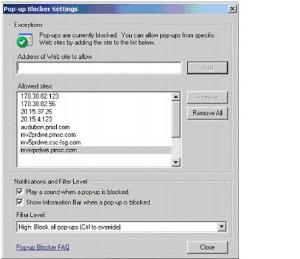
6 In the Exceptions section, in the field called Address of Web sites to allow, enter the IP address or the machine name where your Media Management system is located.
|
•
|
In our example, the IP address we want to add is 20.15.4.158. (Its equivalent machine name is quadevwa.bly.csc.com.)
|
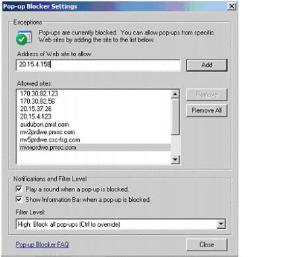
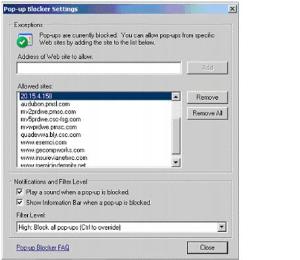
7 Click the Add button. This will add the address you just entered to the list of allowed sites.
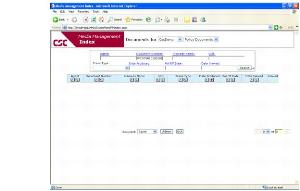
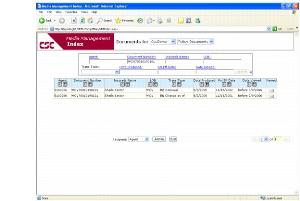
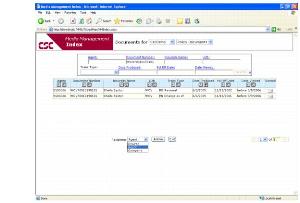
3 Select the Recipient from the combo box and double click on the first document that is present in the table.
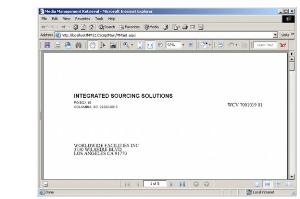
The Recipients List page—a pop-up window—will open.
General Information About Pop-ups and Using the Pop-up Blocker
Pop-up windows are small Web browser windows that are frequently used for advertising. They often open as soon as you navigate to a Web site, whether you want to see them or not. They might open when you click a link or button on a Web site, and they might open either over or under the window you wish to view.
Some pop-ups that you open by clicking a link or button are helpful. For example, if you need to use the Media Management New Business subsystem, your first steps are to sign on to Media Management to go to its Home page and to click the New Business button on the left. This action initiates an active script that launches the Options page—a pop-up window that allows you to select a line of business and other processing options.
There are other helpful pop-ups on the Internet. For example, when you click an image to see a larger version, it might open in a pop-up window. Or if you are buying concert tickets online, you might click a link to see a seating diagram that opens in a pop-up window.
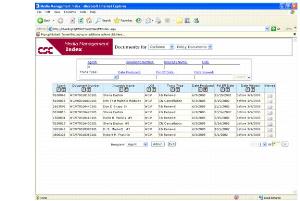
If you get the “Pop-up blocked” error in the midst of a browser session and you want to view that blocked pop-up, IE offers three options. Follow the steps below. (The Information Bar must be visible to do this. See the illustration below.)
1 In Internet Explorer, underneath the Address Bar, click the Information Bar when it notifies you that a pop-up window has been blocked.
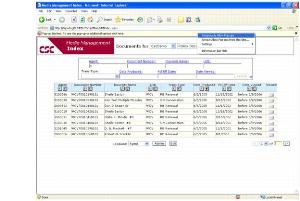
2 Option 1: Select Temporarily Allow Pop-ups. IE will then allow pop-ups only during your current browser session.
3 Option 2: Select Always Allow Pop-ups from This Site. IE will read the address of the Web site you are currently on and will prompt you to confirm that you would like to allow pop-ups from that specific address. For example, “Would you like to allow pop-ups from ‘20.15.4.158’?” If you click Yes, IE adds that address to the list of allowed sites in the Pop-up Blocker Settings panel. Replace this IP address "20.15.4.158’?” with the current one.
4 Option 3: Hover over the Settings option to display its submenu. On the submenu, select More Settings. IE will then display the Pop-up Blocker Settings panel. See Configuring Pop-up Blocker Settings To Allow Helpful Pop-Ups Used in Media Management.
1 You could have software on your computer that is launching pop-ups. To stop these pop-ups, you will have to identify the software and then remove it or change its settings to stop it from launching pop-ups.
3 Internet Explorer will not block pop-ups from Web sites that are in two Web content zones: Local intranet or Trusted sites.
2 On the Tools menu, hover over Pop-up Blocker, and select Pop-up Blocker Settings.
3 In the Allowed sites box, click the Web site you want to remove from the list, and then click Remove.
“I don't want to see pop-ups, even if they are launched when I click a link or button on a Web site. Can I set Internet Explorer to block those also?”
2 On the Tools menu, hover over Pop-up Blocker, and then select Pop-up Blocker Settings.
3 Select the High setting from the Filter-Level drop-down menu in the box near the bottom of the dialog box. Then click Close.
Even with the High filter setting selected, you can override this setting on a case-by-case basis when you are navigating a Web site. If you get the “Pop-up blocked” error, just hold down the Control key (Ctrl) while you repeat the action that initiates the pop-up.
For example, if you sign on to Media Management and encounter the “Pop-up blocked” error when you click the New Business button, simply hold down the Control key while you click the New Business button again. This will allow the Options page (a pop-up window) to properly display.
